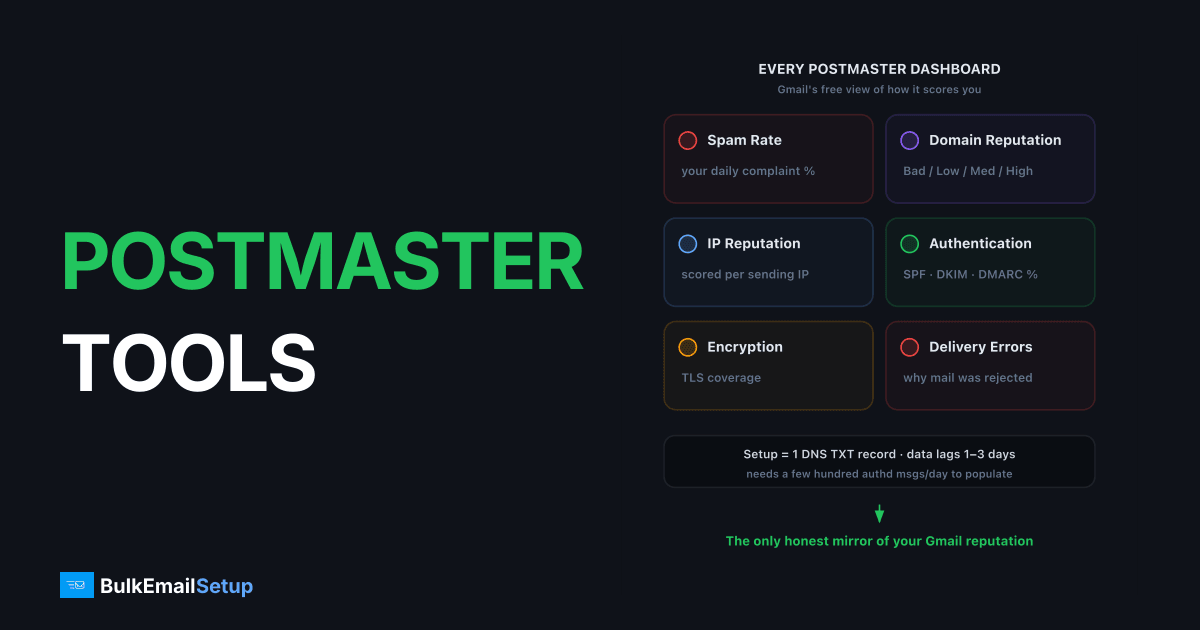
Google Postmaster Tools is Gmail's free dashboard showing how Gmail scores your sending domain and IPs: spam complaint rate, domain and IP reputation, authentication pass rates, encryption, and delivery errors. Setup takes one DNS TXT record, data updates daily with a 1-3 day lag, and most dashboards need a few hundred authenticated messages per day to Gmail before they populate.
Setup in 5 minutes
- Go to postmaster.google.com and sign in with any Google account.
- Add your sending domain, use the domain in your DKIM signature (the d= domain), since that's what Gmail keys reputation on.
- Publish the verification TXT record Google gives you in DNS.
- Add each sending subdomain separately (mail.example.com and example.com are separate ledgers).
If you authenticate with DKIM on a subdomain but From: on the root, add both. Authentication itself must already be live, see SPF, DKIM, DMARC setup.
Dashboard 1: Spam rate
The single most consequential graph. It plots daily user-reported spam complaints divided by mail delivered to the inbox.
| Reading | Meaning |
|---|---|
| < 0.1% | Healthy, Gmail's recommended operating level |
| 0.1-0.29% | Warning zone, find the cause this week |
| ≥ 0.3% | Enforcement threshold under the 2024 bulk sender rules |
Two reading traps: spikes on low-volume days are often just small denominators (3 complaints ÷ 900 inboxed = 0.33%), and a rate that improves while opens fall usually means mail is going to spam where nobody can complain. Full threshold strategy: Gmail's 0.3% complaint threshold.
Dashboard 2: Domain reputation
A four-band score. Bad, Low, Medium, High, summarizing how strongly Gmail associates your domain with spam.
| Band | Practical inbox outcome |
|---|---|
| High | Inbox by default; occasional content-based filtering only |
| Medium | Mostly inbox; some campaigns clipped to spam |
| Low | Significant spam-folder placement |
| Bad | Nearly everything to spam or rejected |
Reputation moves slowly by design. A drop from High to Medium reflects 1-2 weeks of negative signals; climbing back typically takes 2-4 weeks of clean sending to engaged recipients. If you're stuck at Low, the recovery sequence in why emails go to spam applies.
Dashboard 3: IP reputation
Same four bands, scored per sending IP. Read it against domain reputation:
| Domain rep | IP rep | Diagnosis |
|---|---|---|
| High | Low/Bad | IP problem, bad prior tenant, ramped too fast, or shared-pool pollution |
| Low/Bad | High | Domain problem, content, complaints, list quality; changing IPs won't help |
| Low | Low | Systemic, list and infrastructure both need work |
New dedicated IPs show no data, then Low/Medium early in warm-up, that's expected and improves with clean volume.
Dashboard 4: Authentication
Three lines showing the percentage of your traffic passing SPF, DKIM, and DMARC. Healthy senders sit at 99-100% on all three.
- A dip on one line usually means a misconfigured server, a new tool sending unauthenticated, or a DNS change that broke a record.
- A DKIM line below SPF often means some system signs with the wrong domain.
- Sustained sub-100% DMARC alignment is a 2024-requirements violation for bulk senders, fix it before Gmail starts rejecting.
This dashboard is also your spoofing detector: traffic you don't recognize failing authentication is someone else using your domain.
Dashboard 5: Encryption
Shows the share of inbound and outbound traffic using TLS. Modern expectations are ~100%; anything lower means a relay in your path is negotiating plaintext. Gmail flags non-TLS mail with a red open padlock to recipients, which depresses trust and engagement.
Dashboard 6: Delivery errors
The percentage of your connection attempts Gmail rejected or temp-failed, with error categories.
| Error class | Typical cause | Action |
|---|---|---|
| Rate limit exceeded | Sending too fast for your reputation tier | Slow per-connection throughput; smooth sends over hours |
| IP/domain in RBL or policy block | Blacklisting | Identify and delist, see avoiding blacklists |
| DMARC/auth failure | Broken or missing authentication | Fix DNS records, re-test |
| Suspected spam | Content + reputation combination | Reduce volume, improve targeting |
Error spikes here usually precede reputation drops by a few days, it's the earliest warning Postmaster Tools gives you.
Dashboard 7: Feedback loop (FBL)
Only populates if you embed the Feedback-ID header in your mail, designed for high-volume senders who want complaint data broken down by campaign or customer. If you run one brand on one stream, the spam rate dashboard already tells you what you need; if you send for multiple clients or campaign types, Feedback-ID is how you find which one is burning the domain.
A weekly review routine
- Daily (30 seconds): spam rate. Anything over 0.1% gets investigated same day.
- Weekly: domain reputation, IP reputation, delivery errors, screenshot or log the values so you can see month-over-month drift.
- After any infrastructure change: authentication dashboard for 3-4 days (new ESP, new server, DNS edits).
- Pair with seed tests: Postmaster shows Gmail's opinion with a 1-3 day lag; seed-list testing shows actual folder placement today, across providers.
Limits worth knowing
- Gmail only, no Outlook, Yahoo, or Apple data. Microsoft's SNDS covers Outlook IPs.
- Minimum-volume gating: low-volume domains see empty graphs.
- No per-campaign breakdown without Feedback-ID, and no per-recipient data ever.
- 1-3 day lag means it's a trend tool, not an incident tool.
How BulkEmailSetup helps
We set up every dedicated SMTP server with SPF, DKIM, DMARC and PTR, which Postmaster Tools needs to show your domain data, so you can verify it on day one and watch the graphs yourself. Basic is $549 one-time plus about $11 a month hosting. See plans and pricing.
Frequently asked questions
Is Google Postmaster Tools free?
Yes. Anyone who can verify domain ownership via a DNS TXT record gets full access. There is no paid tier.
Why does Postmaster Tools show no data for my domain?
Most dashboards need a minimum daily volume of authenticated mail to Gmail, typically a few hundred messages per day, before they populate. Low-volume senders see blank graphs; that's normal, not an error.
What is a good domain reputation in Postmaster Tools?
High is the target, it means Gmail rarely associates your domain with spam and inbox placement is reliable. Medium is workable, Low means a meaningful share of mail goes to spam, and Bad means most of it does.
How often does Postmaster Tools update?
Daily, with a lag of 1-3 days. There is no real-time view, so pair it with seed-list testing when you need same-day placement data.
Does Postmaster Tools show data for other providers like Outlook or Yahoo?
No, it covers Gmail only. Microsoft offers SNDS for Outlook IP data; Yahoo has no equivalent dashboard, only a complaint feedback loop.