You craft the perfect email. You write compelling copy, design a beautiful template, hit send to your entire list, and half your subscribers never see it. Your email is sitting in their spam folder, invisible, unread, wasted.
This is the single biggest problem in email marketing. It does not matter how good your content is if it never reaches the inbox. And the gap between inbox and spam is not about luck, it is about understanding how email filtering works and systematically addressing every factor that ISPs use to make their decision.
45%
of all email is spam (global average)
21%
of legitimate emails miss the inbox
$36
ROI for every $1 spent on email
6.5B
spam emails blocked daily by Gmail
This guide is a complete, actionable playbook for preventing emails from going to spam. We cover everything from authentication protocols and IP reputation to content optimization and engagement strategies. Whether you are sending 1,000 emails a day or 1 million, the principles are the same, but the stakes get higher with volume.
At BulkEmailSetup, we have configured email infrastructure for hundreds of businesses, and deliverability is always the first conversation. This guide distills years of hands-on experience into a step-by-step framework you can follow.
How Email Filtering Actually Works in 2026
Before you can prevent emails from going to spam, you need to understand why they go to spam. Modern email filtering is not a single check, it is a multi-layered system that evaluates your email at every stage of delivery.
How spam filtering scores your email
Connection
IP not blacklisted
Authentication
SPF + DKIM pass
Reputation
IP is new, low trust
Content
Some spam trigger words
Engagement
Good past open rates
Decision
Final placement
Each stage adds or subtracts from the score. No single factor decides , it is the cumulative result that determines placement.
The Email Delivery Pipeline
When you hit “send,” your email goes through a series of checkpoints before it reaches the recipient. Each checkpoint can either pass your email through or flag it as suspicious. Here is the complete flow:
SMTP Connection
Your mail server connects to the recipient's mail server. The receiving server immediately checks your IP address against blacklists (DNSBLs). If your IP is listed, the connection may be rejected outright, the email never even reaches the spam folder.
Authentication Verification
The receiving server checks SPF (is this IP authorized to send for this domain?), DKIM (was this email actually signed by this domain?), and DMARC (what should I do if authentication fails?). Failing any of these is a strong negative signal.
Reputation Assessment
ISPs maintain reputation scores for both your sending IP and your domain. These scores are based on historical sending patterns, bounce rates, spam complaints, engagement metrics. Low reputation means higher spam probability.
Content Analysis
The email content is scanned for spam indicators, trigger words, excessive links, image-to-text ratio, hidden text, URL reputation, and structural patterns common to spam.
Engagement Prediction
Gmail and other ISPs use machine learning to predict whether the recipient will engage with this email. They factor in past opens, clicks, replies, and whether similar recipients have marked emails from you as spam.
Final Placement Decision
Based on all the above signals, the ISP makes a weighted decision: inbox, spam, promotions tab, or reject entirely. This decision happens in milliseconds.
Key Insight
Spam filtering is not binary. There is no single thing that sends your email to spam. It is a cumulative score across authentication, reputation, content, and engagement. You need to get all of these right, not just one.
How Gmail, Outlook, and Yahoo Make Decisions
Each major ISP has its own spam filtering system, but they all weigh similar factors. Here is how the big three differ:
| Factor | Gmail | Outlook / Hotmail | Yahoo / AOL |
|---|---|---|---|
| Primary signal | User engagement (opens, clicks, replies) | Sender reputation + complaints | Domain reputation + authentication |
| Authentication weight | Very high, requires SPF, DKIM, DMARC | High, checks all three | High, strict DMARC enforcement |
| Tabs / categories | Primary, Promotions, Social, Updates | Focused, Other | Single inbox |
| Complaint threshold | 0.1% (1 in 1,000) | 0.3% | 0.1% |
| Blacklist reliance | Internal + Spamhaus | Internal + return path | Internal + Spamhaus |
| Rate limiting | Aggressive for new IPs | Moderate | Moderate |
Gmail's 2024 Sender Requirements
Starting February 2024, Gmail requires all bulk senders (5,000+ messages/day) to have SPF, DKIM, and DMARC configured, maintain spam complaint rates below 0.1%, include one-click unsubscribe, and use a TLS connection. Non-compliance results in rejection, not just spam placement.
Email Authentication: SPF, DKIM, DMARC, and rDNS
Email authentication is the foundation of deliverability. Without it, you are sending email from an unverified source, and ISPs treat unverified sources as potential spam. Think of authentication as your email's passport: without it, you get turned away at the border.
How email authentication works at the DNS level
SPF (Sender Policy Framework)
SPF tells receiving servers which IP addresses are authorized to send email on behalf of your domain. It works through a DNS TXT record that lists your authorized sending sources.
When a receiving server gets an email from your domain, it looks up your SPF record and checks whether the sending server's IP address is listed. If it is not, the email fails SPF authentication.
SPF Record Example
v=spf1 ip4:192.168.1.0/24 include:_spf.google.com ~all
This record authorizes the IP range 192.168.1.0/24 and Google's servers to send for your domain. The ~all means soft-fail for all other sources (they will be treated as suspicious but not rejected outright).
Common SPF mistakes that cause spam delivery:
- Missing SPF record entirely, This is the most common issue. Without SPF, any server can claim to send from your domain.
- Too many DNS lookups, SPF has a 10-lookup limit. If your record includes too many
include:directives, the check fails entirely. - Using
+allinstead of-all, This authorizes every server on the internet to send as your domain. Use-all(hard fail) or~all(soft fail) instead. - Not including all sending sources, If you send from your own servers AND through a service like Mailchimp or SendGrid, both must be in your SPF record.
DKIM (DomainKeys Identified Mail)
DKIM adds a cryptographic signature to your outgoing emails. The receiving server can verify this signature against a public key published in your DNS records, proving that the email was actually sent by your domain and was not modified in transit.
Unlike SPF, which only checks the sending server's IP, DKIM verifies the content of the email. This means that even if your email is forwarded through multiple servers, the DKIM signature remains valid.
Without DKIM
- ✗Email can be spoofed easily
- ✗ISPs cannot verify sender identity
- ✗Higher spam placement probability
- ✗No protection against tampering
- ✗Lower sender reputation score
With DKIM
- ✓Cryptographic proof of sender
- ✓ISPs verify every message
- ✓Significantly better inbox rates
- ✓Content integrity guaranteed
- ✓Higher trust with all ISPs
Without DKIM
- ✗Email can be spoofed easily
- ✗ISPs cannot verify sender identity
- ✗Higher spam placement probability
- ✗No protection against tampering
- ✗Lower sender reputation score
With DKIM
- ✓Cryptographic proof of sender
- ✓ISPs verify every message
- ✓Significantly better inbox rates
- ✓Content integrity guaranteed
- ✓Higher trust with all ISPs
Pro Tip
Use a DKIM key length of at least 2048 bits. Some older guides recommend 1024-bit keys, but these are now considered weak. Most modern ISPs prefer or require 2048-bit keys for full trust.
DMARC (Domain-based Message Authentication, Reporting, and Conformance)
DMARC ties SPF and DKIM together and tells receiving servers what to do when authentication fails. Without DMARC, ISPs decide on their own what to do with unauthenticated email, which often means spam folder.
DMARC also provides reporting, so you can see who is sending email using your domain (including unauthorized senders trying to spoof you).
Start with p=none (monitoring only)
Begin with v=DMARC1; p=none; rua=mailto:[email protected]. This does not block any email but sends you reports about who is sending as your domain. Run this for 2-4 weeks.
Analyze your DMARC reports
Review the aggregate reports to identify all legitimate sending sources. Make sure every legitimate source passes SPF or DKIM alignment. Fix any authentication issues before moving to enforcement.
Move to p=quarantine
Once all legitimate sources pass authentication, change your policy to p=quarantine. This tells ISPs to send unauthenticated email to spam. Start with pct=10 to apply it to only 10% of messages, then gradually increase.
Enforce with p=reject
The final stage: p=reject tells ISPs to outright reject emails that fail authentication. This is the strongest protection against domain spoofing and provides the best deliverability signal.
Reverse DNS (rDNS / PTR Records)
Reverse DNS maps your sending IP address back to a hostname. When a receiving server sees an incoming connection from IP 192.168.1.1, it does a reverse lookup to check if that IP resolves to a legitimate hostname like mail.yourdomain.com.
If your IP has no PTR record, or if the PTR record points to a generic hostname like 192-168-1-1.your-hosting.com, many ISPs will immediately flag your email as suspicious. This is one of the first checks performed, and failing it can result in outright rejection before any content is even examined.
Authentication Checklist
Every sending domain should have all four configured:
- SPF record authorizing your sending IPs
- DKIM with 2048-bit key signing all outgoing mail
- DMARC policy (at minimum p=none with reporting)
- PTR records for every sending IP resolving to your domain
With BulkEmailSetup, all four are configured automatically during installation.
IP Reputation and Domain Reputation
Authentication tells ISPs who you are. Reputation tells them whether to trust you. You can have perfect SPF, DKIM, and DMARC and still land in spam if your reputation is poor.
There are two types of reputation that matter: IP reputation (the sending server's address) and domain reputation (your from-domain and links within the email). Both are tracked independently and both affect deliverability.
How IP Reputation Is Calculated
Bounce Rate
High hard bounce rates (>2%) signal a dirty list. ISPs penalize IPs that consistently send to invalid addresses.
Spam Complaints
When recipients mark your email as spam, it directly damages your IP reputation. Keep complaint rates below 0.1%.
Volume Consistency
Sudden spikes in sending volume from an IP trigger throttling. ISPs prefer consistent, predictable sending patterns.
Sending History
New IPs have no reputation. It takes 4-8 weeks of careful warm-up to establish positive IP reputation.
Spam Trap Hits
Sending to spam trap addresses (old addresses repurposed by ISPs) is a major negative signal.
Engagement Rates
ISPs track how recipients interact with email from your IP. High engagement improves reputation over time.
Domain Reputation vs. IP Reputation
In recent years, ISPs, especially Gmail, have shifted from relying primarily on IP reputation to weighting domain reputation more heavily. This means that even if you switch to new IPs, your domain reputation follows you.
| Aspect | IP Reputation | Domain Reputation |
|---|---|---|
| What it tracks | Sending behavior from a specific IP address | Sending behavior associated with your domain |
| How long to build | 4-8 weeks of warm-up | Months of consistent good sending |
| Can you reset it? | Yes, switch to new IPs | No, follows your domain forever |
| Weight in filtering | Moderate (declining) | High (increasing) |
| Primary ISP | Outlook, Yahoo weight IP heavily | Gmail weights domain more |
| Recovery time | 2-4 weeks with clean sending | 4-12 weeks of improved practices |
Domain Reputation Is Permanent
Unlike IP reputation, you cannot easily reset domain reputation by switching infrastructure. If you damage your domain reputation, the only path forward is cleaning up your sending practices and waiting for the reputation to recover gradually. Protect your domain reputation above all else.
How to Check Your Reputation
You should regularly monitor both your IP and domain reputation using these tools:
- Google Postmaster Tools, Shows your domain reputation with Gmail (High, Medium, Low, Bad), spam rate, and authentication success rates. This is the most important tool if Gmail is a significant portion of your list.
- Microsoft SNDS (Smart Network Data Services), Shows your IP reputation with Outlook/Hotmail, complaint rates, and trap hits.
- MXToolbox, Checks your IPs and domain against 100+ blacklists. Run this weekly.
- Sender Score (Validity), Provides a 0-100 reputation score for your sending IPs based on multiple data sources.
- Talos Intelligence(Cisco), Shows your IP's email reputation as Good, Neutral, or Poor.
IP Warm-Up: Building Reputation from Scratch
If you are using new dedicated IPs, which you should be for bulk email, those IPs have zero reputation. ISPs have never seen email from them before and will treat them with suspicion until they build a track record.
IP warm-up is the process of gradually increasing your sending volume over several weeks to build positive reputation. Skipping warm-up is one of the fastest ways to land in spam permanently.
IP Warm-Up Schedule
The exact schedule depends on your target volume, but here is a general framework that works for most senders:
| Week | Daily Volume | Strategy | Monitor |
|---|---|---|---|
| Week 1 | 100-500 | Send only to your most engaged subscribers (opened in last 30 days) | Bounce rate, blocks |
| Week 2 | 500-1,500 | Expand to subscribers who opened in last 60 days | Spam complaints, deferrals |
| Week 3 | 1,500-5,000 | Include subscribers who opened in last 90 days | Inbox placement rate |
| Week 4 | 5,000-15,000 | Include subscribers who opened in last 6 months | Domain reputation in Postmaster Tools |
| Week 5-6 | 15,000-75,000 | Gradually include full list, excluding never-opened | All metrics, adjust if any degrade |
| Week 7-8 | 75,000-300,000+ | Full volume with clean list | Maintain all metrics within healthy ranges |
Pro Tip
During warm-up, only send to subscribers who have engaged recently. This creates a positive engagement signal with ISPs from the start. If your first emails from a new IP get ignored or marked as spam, you are poisoning the IP before it ever had a chance.
What to Do If Warm-Up Goes Wrong
If during warm-up you notice increasing bounce rates, deferrals (temporary rejections), or your emails landing in spam, take these steps:
- Reduce volume immediately, Drop back to the previous week's volume or lower.
- Review your list quality, Run your list through an email verification service to remove invalid addresses.
- Check authentication, Verify SPF, DKIM, and DMARC are all passing using a tool like mail-tester.com.
- Check blacklists, See if your IP landed on any blacklists using MXToolbox.
- Wait 48-72 hours, Sometimes ISPs throttle temporarily and the issue resolves itself. Do not keep sending at full volume hoping it clears up.
- Resume gradually, Once metrics stabilize, resume the warm-up schedule from a lower volume.
For detailed warm-up schedules specific to different server setups, see our guides: Basic Server Warm-Up, Advanced Server Warm-Up, and Custom Server Warm-Up.
List Hygiene: The Foundation of Inbox Delivery
Your email list is a living thing. People change email addresses, abandon accounts, and lose interest. If you keep sending to addresses that bounce, never engage, or have turned into spam traps, you are actively damaging your sender reputation with every send.
List hygiene is not a one-time task, it is an ongoing discipline that directly determines your deliverability.
of email lists decay every year. Addresses become invalid, people switch providers, and employees leave companies. If you are not actively cleaning your list, nearly a third of it is dead weight hurting your reputation.
Types of Bad Addresses to Remove
| Address Type | Risk Level | Action |
|---|---|---|
| Hard bounces | Critical, remove immediately | Remove after first hard bounce. Continuing to send to hard bounces is the fastest way to damage your reputation. |
| Spam trap addresses | Critical, severe reputation damage | These are addresses created or repurposed by ISPs specifically to catch spammers. You cannot identify them directly, only prevent them through good list practices. |
| Role-based addresses (info@, admin@) | High, often monitored by anti-spam systems | Remove from marketing lists. These addresses are frequently monitored and have higher complaint rates. |
| Never-engaged subscribers | Medium, dragging down engagement rates | If someone has not opened or clicked in 6+ months despite regular sending, move them to a re-engagement campaign or remove them. |
| Soft bounces (repeated) | Medium, indicates inactive accounts | Remove after 3-5 consecutive soft bounces. These are often full mailboxes or temporarily unavailable accounts that have been abandoned. |
| Typo addresses (gmial.com, yaho.com) | Low-Medium, will hard bounce | Use email verification at the point of signup to catch these before they enter your list. |
The Spam Trap Problem
Spam traps look identical to real addresses
You cannot tell these apart by looking at them. Each type has a different origin, and a different severity level when you hit one.
Email address:
This address was never a real person. It was created solely to catch scrapers and list purchasers.
Created by ISP as a trap
Planted on hidden web pages
Scrapers collect it
You send to it → busted
Email address:
This was a real person's email. They left the company, the address bounced for years, then the ISP repurposed it as a trap.
Real person used it
Person leaves, address bounces
Inactive for 2+ years
ISP reactivates as trap
Email address:
sarah@gmial.com
This looks like a real address with a typo. The misspelled domain exists solely to catch senders who don't validate addresses at signup.
User types email with typo
No validation catches it
Address added to your list
Every send hits the trap
Spam traps are addresses specifically designed to catch senders with poor list practices. There are three types:
- Pristine traps, Addresses created by ISPs that have never been used by a real person. If you are sending to these, you obtained them through scraping or purchasing lists.
- Recycled traps, Old, abandoned email addresses that ISPs have repurposed. They were once valid but have been inactive for years. If you are sending to these, your list is outdated.
- Typo traps, Addresses at common misspelled domains (like gmial.com). If you are sending to these, you are not validating email addresses at signup.
Never Buy Email Lists
Purchased email lists are the number one source of spam trap hits. They are also illegal under GDPR and violate CAN-SPAM best practices. Every legitimate email address on a purchased list did not opt in to receive your emails, which means high complaint rates and near-certain spam placement.
Building a Clean List from Day One
List Hygiene Best Practices
- ✓Use double opt-in (confirmation email) for all new subscribers
- ✓Validate email addresses at the point of signup with real-time verification
- ✓Remove hard bounces immediately after every send
- ✓Run your full list through an email verification service quarterly
- ✓Segment inactive subscribers (no opens in 90+ days) into a re-engagement flow
- ✓Remove subscribers who do not engage after a re-engagement campaign
- ✓Never scrape, purchase, or rent email lists
- ✓Monitor your bounce rate after every campaign, target under 2%
- ✓Set up feedback loops with major ISPs to receive spam complaint notifications
- ✓Include a clear, visible unsubscribe link in every email
Content Optimization: What You Write Matters
Even with perfect authentication and pristine list hygiene, the content of your email can still trigger spam filters. Modern filters are more sophisticated than simple keyword matching, but content analysis remains a significant factor in the filtering decision.
Spam Trigger Words and Phrases
While modern spam filters do not rely solely on keywords, certain words and phrases still increase your spam score, especially when combined with other negative signals. Here are the categories to be aware of:
High Spam Risk
- ✗FREE!!! Click here NOW!!!
- ✗Make $$$ from home guaranteed
- ✗Act now, limited time only!!!
- ✗You've been selected as a winner
- ✗100% risk-free, no obligation
- ✗Urgent: your account requires action
- ✗ALL CAPS SUBJECT LINES
Professional & Safe
- ✓Your weekly product update
- ✓How [Company] grew revenue 23%
- ✓3 strategies for better deliverability
- ✓Quick question about your email setup
- ✓New guide: IP warm-up checklist
- ✓Your order #1234 has shipped
- ✓Descriptive, relevant subject lines
High Spam Risk
- ✗FREE!!! Click here NOW!!!
- ✗Make $$$ from home guaranteed
- ✗Act now, limited time only!!!
- ✗You've been selected as a winner
- ✗100% risk-free, no obligation
- ✗Urgent: your account requires action
- ✗ALL CAPS SUBJECT LINES
Professional & Safe
- ✓Your weekly product update
- ✓How [Company] grew revenue 23%
- ✓3 strategies for better deliverability
- ✓Quick question about your email setup
- ✓New guide: IP warm-up checklist
- ✓Your order #1234 has shipped
- ✓Descriptive, relevant subject lines
HTML Email Best Practices
The structure of your HTML email matters as much as the words in it. Poorly formatted HTML is a strong spam signal because legitimate senders use professional email builders, while spammers often cobble together broken HTML.
Image-to-Text Ratio
Keep at least a 60:40 text-to-image ratio. All-image emails (a single large image) are heavily penalized by spam filters.
Responsive Design
Use responsive HTML templates that render correctly on mobile. Broken layouts increase the chance of spam complaints from frustrated recipients.
Link Hygiene
Avoid URL shorteners (bit.ly, tinyurl) in emails, spammers use them to hide malicious links. Use your own branded domain for tracking links.
Plain Text Version
Always include a plain text version alongside HTML. Emails with only HTML and no plain text alternative are more likely to be flagged.
Reasonable Size
Keep total email size under 100KB. Oversized emails with heavy images are slow to load and get flagged more often.
No Hidden Content
Never use white text on white background, tiny fonts, or display:none CSS. Spam filters specifically look for hidden text tricks.
Subject Line Optimization
Your subject line is the first thing both spam filters and recipients see. A good subject line improves both deliverability and open rates.
- Keep it under 50 characters, Shorter subject lines perform better on mobile and look less spammy.
- Avoid ALL CAPS, Caps lock in subject lines is one of the strongest spam signals.
- Limit punctuation, Multiple exclamation marks (!!!) or question marks (???) trigger spam filters.
- Be specific and honest, Misleading subject lines that do not match the email content violate CAN-SPAM and increase spam complaints.
- Personalize when possible, Including the recipient's name or company can improve open rates and signal to ISPs that this is a targeted, legitimate email.
- Avoid emoji overuse, One emoji is fine; five emojis in a subject line looks like spam.
Pro Tip
Test your email before sending using tools like mail-tester.com or GlockApps. These tools show you exactly how your email scores across major spam filters and tell you what to fix before you send to your real list.
Engagement Signals: The Most Important Factor in 2026
In the past, deliverability was primarily about authentication and content. Today, engagement is the dominant signalfor inbox placement at Gmail and increasingly at other ISPs. Gmail's spam filter uses machine learning to predict whether a recipient will want to see your email, based largely on how similar recipients have interacted with your previous emails.
This creates a virtuous cycle: high engagement leads to better inbox placement, which leads to more visibility, which leads to higher engagement. Conversely, low engagement leads to spam placement, which leads to less visibility, which leads to even lower engagement.
The engagement feedback loop
Deliverability spirals up or down. Good engagement feeds better placement, which feeds more engagement, and vice versa.
Positive Engagement Signals
These actions tell ISPs that recipients want your email:
- Opening the email, A basic but important signal that the recipient recognized and trusted the sender.
- Clicking links, Shows the recipient found the content valuable enough to take action.
- Replying to the email, The strongest positive signal. Replies indicate a genuine conversation, not automated marketing.
- Moving from spam to inbox, When a recipient rescues your email from spam, it sends a powerful signal to the ISP.
- Adding to contacts, Tells the ISP that this sender is trusted and all future emails should go to inbox.
- Forwarding the email, Indicates the content was valuable enough to share.
Negative Engagement Signals
- Marking as spam, The most damaging signal. Even a small number of spam complaints can tank your reputation.
- Deleting without opening, Indicates the recipient does not care about your emails.
- Ignoring consistently, If your emails pile up unread in someone's inbox, Gmail notices.
- Unsubscribing, Mildly negative, but much better than a spam complaint. Make unsubscribing easy.
is Gmail's spam complaint rate threshold. If more than 1 in 1,000 recipients mark your email as spam, Gmail will start sending all your email to spam. At high volumes, even a tiny percentage translates to significant complaint counts.
Strategies to Maximize Engagement
Engagement Optimization
- ✓Segment your list by engagement level, send more frequently to engaged subscribers
- ✓Personalize content based on subscriber behavior and preferences
- ✓Send at optimal times based on when your audience typically opens email
- ✓Use compelling, honest subject lines that create curiosity without being clickbait
- ✓Include a clear call-to-action in every email, give people a reason to click
- ✓Ask for replies in your emails, especially in welcome sequences
- ✓Re-engage inactive subscribers with a dedicated win-back campaign
- ✓Remove subscribers who do not engage after re-engagement attempts
- ✓A/B test subject lines, send times, and content to continuously improve
- ✓Keep your sending frequency consistent, avoid long gaps followed by bursts
Sender Identity and Legal Compliance
Your sender identity, the “From” name, email address, and the information in your email footer, affects both spam filtering and recipient trust. Using a professional, consistent sender identity improves deliverability and reduces spam complaints.
From Name and Email Address
- Use your own domain, Never send marketing email from @gmail.com, @yahoo.com, or @hotmail.com. These free email providers have strict DMARC policies that will cause your emails to fail authentication when sent through a third-party server.
- Be consistent, Use the same From name and email address for all your campaigns. Changing sender identity frequently looks suspicious to both ISPs and recipients.
- Use a recognizable name, “John from Acme” or “Acme Marketing” is better than just “[email protected]”. Recipients are more likely to open (and less likely to report as spam) emails from names they recognize.
- Avoid noreply@ addresses, These prevent recipients from replying, which eliminates one of the strongest positive engagement signals. Use a monitored reply-to address.
CAN-SPAM and Legal Requirements
Legal compliance is not just about avoiding fines, it also affects deliverability. ISPs check for compliance signals, and violating these rules increases your spam score.
| Requirement | CAN-SPAM (US) | GDPR (EU) | CASL (Canada) |
|---|---|---|---|
| Consent type | Opt-out (implied consent OK) | Explicit opt-in required | Express consent required |
| Unsubscribe | Required, honor within 10 days | Required, immediate | Required, immediate |
| Physical address | Required in every email | Required (business address) | Required in every email |
| Sender identification | Accurate From and subject lines | Data controller identified | Sender clearly identified |
| Penalties | Up to $51,744 per email | Up to 4% of global revenue | Up to $10M per violation |
One-Click Unsubscribe
Gmail now requires bulk senders to support RFC 8058 one-click unsubscribe via the List-Unsubscribe and List-Unsubscribe-Postheaders. This creates the “Unsubscribe” button that appears next to the sender name in Gmail. Implementing this reduces spam complaints because recipients can leave your list without reaching for the spam button.
Sending Infrastructure for Maximum Deliverability
The infrastructure you use to send email has a direct impact on deliverability. Shared sending infrastructure (like free-tier email services) means your reputation is affected by other senders on the same IPs. Dedicated infrastructure gives you full control.
Shared vs. Dedicated IPs
Shared IPs
- ✓Reputation shared with all users on the IP
- ✓Other senders' bad behavior affects you
- ✓No warm-up needed (already established)
- ✓No control over sending reputation
- ✓Suitable for low volume (<10K/month)
Dedicated IPs
- ✓Your reputation is yours alone
- ✓Full control over sending behavior
- ✓Requires proper warm-up (4-8 weeks)
- ✓Complete deliverability control
- ✓Essential for high volume (>50K/month)
IP Rotation for High Volume
When sending at high volume (50,000+ emails per day), distributing your sending across multiple IPs prevents any single IP from hitting ISP rate limits. This technique is called IP rotation.
With proper IP rotation setup, your server automatically distributes outgoing emails across your pool of dedicated IPs. Each IP stays under the per-IP sending limits of major ISPs, maintaining healthy delivery rates across the board.
TLS Encryption
All modern ISPs expect email to be transmitted over TLS (Transport Layer Security). If your server does not support TLS, many ISPs will either reject the connection or penalize you in spam scoring.
Gmail displays a red open padlock icon on emails received without TLS, which reduces recipient trust and increases the chance they will report the email as spam. Always configure your SMTP server with a valid TLS certificate.
Infrastructure Checklist
Your sending infrastructure should have:
- Dedicated IPs (not shared with other senders)
- Valid TLS certificate on your SMTP server
- IP rotation for volumes above 50,000/day
- PTR records configured for every sending IP
- Bounce processing to automatically remove hard bounces
- Feedback loop registration with major ISPs for complaint data
Blacklist Monitoring and Recovery
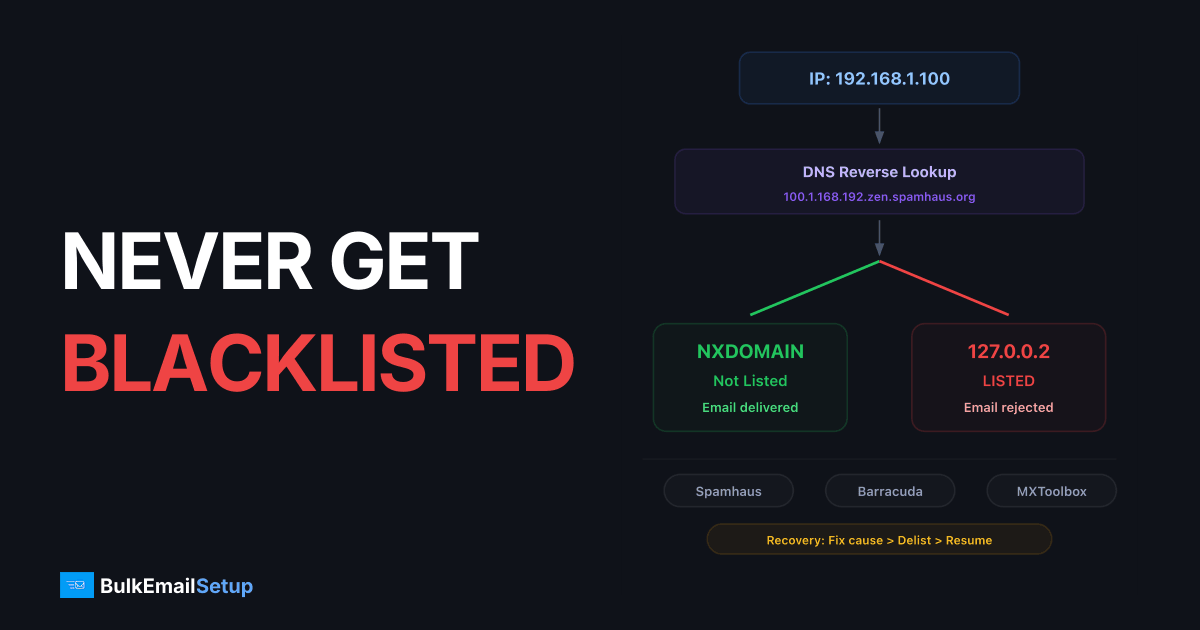
Email blacklists (also called DNSBLs or RBLs) are databases of IP addresses and domains known to send spam. When your IP or domain appears on a blacklist, ISPs that check that list will either reject your emails entirely or route them straight to spam.
There are hundreds of blacklists, but only a few matter significantly. Major ISPs primarily check Spamhaus, Barracuda, and their own internal lists.
The Most Important Blacklists
| Blacklist | Impact | How to Delist |
|---|---|---|
| Spamhaus SBL/XBL/DBL | Critical, checked by most ISPs worldwide | Submit removal request at spamhaus.org. Must identify and fix the cause first. |
| Barracuda (BRBL) | High, widely used by corporate mail servers | Submit removal at barracudacentral.org. Automatic removal after behavior improves. |
| SpamCop | Medium, time-based, auto-expires | Listings expire 24-48 hours after last complaint. Stop sending to the complaining addresses. |
| SORBS | Medium, checks multiple criteria | Submit removal request. Some zones auto-expire. |
| Invaluement | Medium, focuses on snowshoe spam | Submit removal request with explanation of sending practices. |
What to Do If You Get Blacklisted
Identify the blacklist and reason
Use MXToolbox or a similar tool to determine which blacklist(s) you are on. Each blacklist usually provides a reason for the listing, spam trap hit, complaint threshold exceeded, open relay detected, etc.
Stop the bleeding
Pause sending from the affected IP immediately. Continuing to send while blacklisted makes the listing worse and may trigger additional blacklistings.
Fix the root cause
The listing happened for a reason. Clean your list, fix your authentication, check for compromised accounts, or address whatever caused the listing. Do not request removal until the cause is fixed.
Request delisting
Visit the blacklist's website and submit a removal request. Be honest about what happened and what you did to fix it. Most blacklists process removal requests within 24-48 hours.
Resume sending carefully
After delisting, resume sending at reduced volume. Treat it like a mini warm-up period. Monitor closely for any signs of re-listing.
For more on blacklist prevention and recovery, see our guide on how to send emails without getting blacklisted.
Ongoing Monitoring and Optimization
Deliverability is not a set-and-forget task. ISPs constantly update their algorithms, recipient behavior changes, and your list evolves over time. Continuous monitoring is essential to catching issues before they become serious.
Key Metrics to Track
| Metric | Healthy Range | Warning | Critical |
|---|---|---|---|
| Inbox placement rate | >95% | 85-95% | <85%, investigate immediately |
| Hard bounce rate | <0.5% | 0.5-2% | >2%, pause and clean list |
| Spam complaint rate | <0.05% | 0.05-0.1% | >0.1%, at risk of blocking |
| Unsubscribe rate | <0.5% | 0.5-1% | >1%, review content/frequency |
| Open rate | >20% | 10-20% | <10%, engagement crisis |
| Click-through rate | >2.5% | 1-2.5% | <1%, review content strategy |
Weekly Monitoring Checklist
Weekly Deliverability Audit
- ✓Check Google Postmaster Tools for domain reputation changes
- ✓Review bounce rates from the last 7 days, investigate any spikes
- ✓Monitor spam complaint rates across all ISPs
- ✓Run blacklist check on all sending IPs via MXToolbox
- ✓Review inbox placement test results (GlockApps or similar)
- ✓Check email authentication pass rates (SPF, DKIM, DMARC)
- ✓Review engagement metrics (opens, clicks) by segment
- ✓Process and remove any new hard bounces from your list
The 10 Most Common Mistakes That Send Emails to Spam
After configuring email infrastructure for hundreds of businesses, we see the same mistakes repeatedly. Here are the top 10, ranked by how frequently they cause spam delivery:
- No email authentication (SPF, DKIM, DMARC), This is the most common and most fixable issue. Without authentication, ISPs have no way to verify your identity.
- Sending to purchased or scraped lists, These lists contain spam traps, invalid addresses, and people who never asked for your email. The result is high bounce rates, high complaints, and immediate reputation damage.
- Skipping IP warm-up, Sending high volume from new IPs without warm-up triggers ISP rate limiting and often results in permanent spam placement.
- Not removing hard bounces, Continuing to send to addresses that have already bounced tells ISPs you do not maintain your list.
- High spam complaint rate, Not including a clear unsubscribe link, or making it difficult to find, pushes recipients toward the spam button.
- Inconsistent sending volume, Going from zero emails to 100,000 in one day, or sending nothing for months then blasting your entire list, triggers spam filters.
- Image-only emails, Sending emails that are entirely images with no text is a classic spam pattern. Always include real text content.
- Using URL shorteners, Services like bit.ly are heavily abused by spammers. Using them in emails increases your spam score.
- Sending from free email addresses, Using @gmail.com or @yahoo.com as your From address for bulk email fails DMARC authentication.
- Not monitoring reputation, Many senders do not know their emails are going to spam until deliverability is severely damaged. By then, recovery takes weeks.
Pro Tip
Fix these issues in order of priority. Authentication is the foundation, if you get that right, everything else becomes easier. Then focus on list quality, then content, then engagement optimization.
Advanced Deliverability Techniques
Once you have the fundamentals in place, these advanced techniques can push your inbox placement rate even higher.
Subdomain Strategy
Use separate subdomains for different types of email:marketing.yourdomain.com for promotional email,transactional.yourdomain.com for receipts and notifications, and newsletter.yourdomain.com for newsletters. This prevents marketing email reputation from affecting your transactional delivery.
Dedicated IP Pools by ISP
At very high volumes, you can assign specific IPs to specific ISPs. For example, IPs 1-5 only send to Gmail, IPs 6-10 only send to Outlook. This lets you optimize warm-up and sending patterns for each ISP's specific requirements.
Seed List Testing
Before sending a campaign to your full list, send it to a seed list , a set of test addresses across multiple ISPs (Gmail, Outlook, Yahoo, corporate servers). This shows you exactly where the email lands before your real subscribers see it. Tools like GlockApps and 250ok/Validity provide automated seed list testing.
BIMI (Brand Indicators for Message Identification)
BIMI lets you display your brand logo next to your emails in supporting email clients (including Gmail). It requires a DMARC policy of p=quarantine or p=reject and a Verified Mark Certificate (VMC). While not a direct deliverability factor, BIMI increases brand recognition and trust, which improves open rates and reduces spam complaints.
Feedback Loops (FBLs)
Most major ISPs offer feedback loops that notify you when a recipient marks your email as spam. Register for FBLs with all major ISPs and automatically remove complainers from your list. This is one of the fastest ways to reduce your spam complaint rate.
The Complete Email Deliverability Checklist
Here is your comprehensive checklist for ensuring maximum inbox delivery. Use this as your reference every time you set up a new sending domain or audit an existing one.
Authentication & DNS
Authentication Setup
- ✓SPF record published with all authorized sending IPs
- ✓DKIM signing enabled with 2048-bit keys
- ✓DMARC policy published (minimum p=none with reporting)
- ✓PTR records configured for all sending IPs
- ✓TLS certificate installed on SMTP server
- ✓List-Unsubscribe and List-Unsubscribe-Post headers configured
List Management
List Quality
- ✓Double opt-in enabled for all new subscribers
- ✓Email verification at point of signup
- ✓Hard bounces removed automatically after every send
- ✓Full list verified through email verification service
- ✓Inactive subscribers segmented for re-engagement
- ✓No purchased, scraped, or rented email addresses
Content & Sending
Content & Sending
- ✓Professional From name and domain email address
- ✓Plain text version included with every HTML email
- ✓Image-to-text ratio of at least 60:40
- ✓Clear, visible unsubscribe link in every email
- ✓Physical address in email footer
- ✓No URL shorteners in email content
- ✓Subject lines under 50 characters, no ALL CAPS
- ✓Email tested with mail-tester.com before sending
Infrastructure & Monitoring
Infrastructure
- ✓Dedicated IPs for bulk sending
- ✓IP warm-up completed (4-8 weeks)
- ✓IP rotation configured for high volume
- ✓Google Postmaster Tools set up and monitored
- ✓Feedback loops registered with major ISPs
- ✓Weekly blacklist monitoring via MXToolbox
- ✓Inbox placement testing before major campaigns
- ✓Bounce and complaint rates tracked per campaign
Frequently Asked Questions
Why are my emails going to spam all of a sudden?
Sudden spam placement usually means one of three things: your IP or domain was blacklisted, your spam complaint rate exceeded the ISP's threshold, or you had a sudden volume spike that triggered rate limiting. Check blacklists first (MXToolbox), then review your recent complaint rates in Google Postmaster Tools.
How long does it take to fix deliverability?
It depends on the cause. Authentication issues can be fixed in hours. IP reputation recovery takes 2-4 weeks of clean sending. Domain reputation recovery can take 4-12 weeks. The sooner you catch the issue, the faster recovery is.
Does email authentication guarantee inbox delivery?
No. Authentication is necessary but not sufficient. It verifies your identity, but ISPs also consider your reputation, content quality, and recipient engagement. Think of authentication as your ID card, it gets you in the door, but your behavior determines whether you stay.
What is a good inbox placement rate?
Above 95% is excellent. 85-95% is acceptable but indicates room for improvement. Below 85% means there is a significant deliverability problem that needs immediate attention.
Should I use a shared or dedicated IP?
If you send fewer than 10,000 emails per month, a shared IP is usually fine. Above that, dedicated IPs give you full control over your reputation. For bulk senders (50,000+/month), dedicated IPs are essential. Learn more about scaling email infrastructure.
How often should I clean my email list?
Remove hard bounces after every send (this should be automated). Run a full list verification quarterly. Re-engage or remove inactive subscribers every 90 days. If you send daily, monthly list hygiene is recommended.
Can I recover from a bad domain reputation?
Yes, but it takes time and discipline. You need to drastically improve your sending practices, clean your list aggressively, send only to engaged subscribers, fix all authentication, and maintain excellent metrics for 4-12 weeks. There is no shortcut.
What is the difference between spam and the Promotions tab?
The Gmail Promotions tab is not spam, emails there are still delivered and are visible to the recipient. Promotions tab placement is based on the type of email (marketing, deals, offers) rather than reputation. Most marketing emails legitimately belong in Promotions. Focus on avoiding the spam folder, not the Promotions tab.
Conclusion: Deliverability Is a System, Not a Hack
Preventing emails from going to spam is not about finding one magic trick. It is about building a system where every component, authentication, reputation, content, engagement, infrastructure, and list management, works together to signal to ISPs that your email is legitimate and wanted.
The businesses that achieve 95%+ inbox placement rates are the ones that treat deliverability as an ongoing discipline, not a one-time setup. They monitor their metrics weekly, clean their lists regularly, warm up new IPs properly, and continually optimize their content for engagement.
Summary
- Set up SPF, DKIM, DMARC, and rDNS before sending a single email
- Warm up new IPs gradually over 4-8 weeks with engaged subscribers
- Maintain list hygiene, remove bounces, re-engage or remove inactive subscribers
- Optimize content, avoid spam triggers, include plain text, test before sending
- Maximize engagement, segment, personalize, and send to people who want your email
- Monitor continuously, check reputation, blacklists, and metrics weekly
If you are ready to set up your own email infrastructure with dedicated IPs, full authentication, and deliverability built in from day one, check out our setup plans and pricing. We handle the infrastructure so you can focus on sending emails that reach the inbox.