
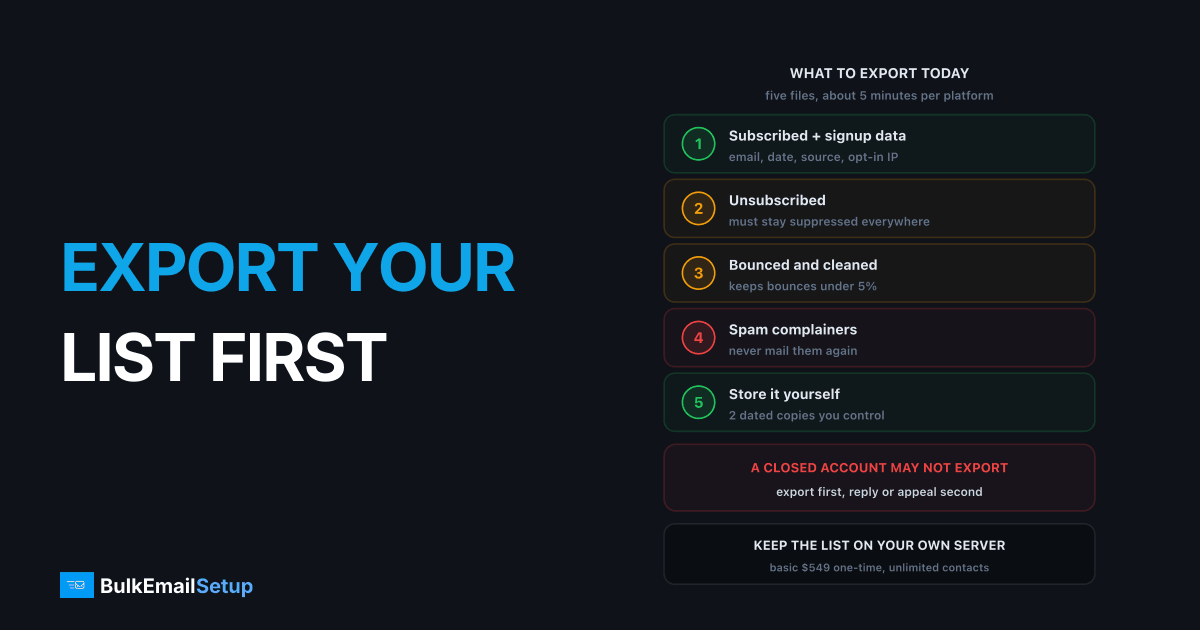
Export your full list today, before anything goes wrong: subscribed contacts, unsubscribes, bounced addresses and the signup fields that prove consent. Every major ESP can suspend or close an account for a policy breach, often with little notice, and a closed account's data is rarely restored. The export takes about 5 minutes per platform. Losing the list can cost years of signups.
Why a ban can take your list with it
An ESP stores your contacts on its platform under its terms. When it suspends sending, you can usually still log in. When it closes the account for a terms breach, access can end at once.
| Account state | Can you log in? | Can you export? | What to do |
|---|---|---|---|
| Healthy | yes | yes | export monthly, keep a dated copy |
| Warning or probation | yes | yes | export now, then fix the cause |
| Under review, sending paused | usually | usually | export before you reply |
| Closed for a terms breach | often no | not promised | ask support, expect no |
ActiveCampaign's own refund policy says it can suspend or terminate access without notice or refund if it decides you broke its terms. Other platforms have similar clauses. So the safe assumption is simple: if the list only lives inside the ESP, you rent it.
The export window shrinks at every step. Export while it is wide open.
What to export, and why each file matters
Do not export just the email column. A bare list of addresses proves nothing to a new provider, and it loses the suppressions that keep you out of trouble.
| File | Fields to keep | Why it matters |
|---|---|---|
| Subscribed contacts | email, name, signup date, source, opt-in IP | proves consent in an appeal or a new provider's review |
| Unsubscribed | email, unsubscribe date | must stay suppressed everywhere, CAN-SPAM requires it |
| Cleaned or hard bounced | email, bounce date | mailing them again pushes bounces past 5% |
| Spam complainers | email, complaint date | the people most likely to report you again |
| Tags and segments | segment name, membership | rebuilds targeting without guesswork |
The FTC's CAN-SPAM guide is clear that opt-outs must be honoured and that you cannot pass an opted-out address to anyone else. The unsubscribe file is not optional.
The email column is the tip. The rest is what protects you.
Steps by vendor
Mailchimp
- Go to Audience, then All contacts.
- Click Export Audience. Mailchimp builds a ZIP file.
- Unzip it. You get one CSV per status: subscribed, unsubscribed, non-subscribed and cleaned.
Mailchimp's export guide also lets you export a single segment or tag. For a full account backup (audiences, templates, campaigns), use the account export, which Mailchimp limits to one per 24 hours.
Klaviyo
- You need the Owner, Admin or Analyst role.
- Go to Audience, then Lists and segments, and open the list or segment.
- Use the Manage dropdown and choose the CSV export.
To export everyone, first build a segment that contains all profiles. Klaviyo's export includes consent status and timestamps but leaves out event history, list membership and messages received, and it caps an export at 700 columns.
SendGrid Marketing Campaigns
- Open Marketing, then Contacts.
- Export the list or segment to CSV.
- For large lists, the Export Contacts API returns download links. Lists over 1 million rows come as several files.
ActiveCampaign
- Go to Contacts.
- Click the menu at the top right and choose Export.
- The export runs in the background. Contact notes are not included.
HubSpot
- Go to Contacts, choose the view, then Export.
- Pick CSV and include all properties, not just the visible columns.
If HubSpot has already locked your marketing email, the CRM and exports keep working. See what to do when HubSpot suspends your sending.
Where to keep the backup
The backup has one job: survive the ESP switching you off. So it cannot live only in the ESP, and it should not live only on one laptop.
| Option | Good for | Watch out for |
|---|---|---|
| Your own CRM or database | live, searchable copy | keep the suppression flags |
| Encrypted company storage | dated snapshots | limit who can open it |
| Campaign platform on your own server | sending and storage in one place | you own the backups too |
| One spreadsheet on one laptop | nothing | lost laptop, leaked personal data |
Keep two copies and date every export. Contact data is personal data under GDPR and similar laws, so store it with the same care as customer records.
Import it safely somewhere new
The way people burn a fresh start is by uploading the whole export and hitting send. Do it in this order instead:
- Suppress first. Import unsubscribes, bounces and complainers as a suppression list before any contacts.
- Clean the rest. Remove anyone with no open or click in 12 months. On most lists that is 20% to 30% of contacts. Our list cleaning guide covers the steps.
- Start with the engaged. Send to your most active segment first while new IPs warm up.
- Keep the consent fields. If a new provider asks how you got the list, you can show them.
For a full move off a specific platform, see migrating from Mailchimp to your own SMTP or what to do after a SendGrid suspension.
Make it automatic
A backup you have to remember is a backup you will skip. Set a fixed day each month, or weekly if the list grows by a few hundred contacts a week. Mailchimp, Klaviyo, SendGrid and ActiveCampaign all have APIs, so a short script can pull the contacts and the suppression files to your own storage without anyone logging in.
How BulkEmailSetup helps
The surest backup is a list that never has to leave: contacts stored on a campaign platform running on your own server. We set up a dedicated SMTP server with a campaign platform, bounce handling, SPF, DKIM, DMARC and PTR, so your contacts, suppressions and sending live on infrastructure you control.
| Plan | One-time fee | Emails per day | Dedicated IPs | Hosting you pay your host |
|---|---|---|---|---|
| Basic | $549 | 25,000 | 3 | about $11 a month |
| Advance | $1,199 | 200,000 | 15 | about $49 a month |
There is no monthly fee to us and no contact limit. See the Basic plan or compare all pricing.
Frequently asked questions
Can an ESP delete my contact list?
Yes. Most ESP terms let the provider suspend or close an account for a policy breach, sometimes without notice, and a closed account's data is usually not restored. ActiveCampaign's refund page, for example, says access can be suspended or terminated without notice or refund for a terms violation. Treat any list that lives only inside an ESP as a list you rent, not one you own.
How do I export my list from Mailchimp, Klaviyo or SendGrid?
Mailchimp: Audience, All contacts, Export Audience, which gives a ZIP with one CSV per status. Klaviyo: open a list or segment and choose the CSV export (Owner, Admin or Analyst role needed; build an all-profiles segment to get everyone). SendGrid Marketing Campaigns: export a list or segment from Contacts, or call the Export Contacts API and download the CSV links it returns.
Can I export from a suspended account?
Often yes during a review, because login usually still works while sending is paused. After a terms closure, access may end, and most providers make no promise either way. That is why the first step on any warning email is to export, before you reply or appeal. Five minutes of exporting is worth more than a week of support tickets.
Where should I keep a backup of my list?
Somewhere you control and the ESP cannot switch off: your own database or CRM, an encrypted folder in company storage, or the campaign platform on your own server, which every BulkEmailSetup plan includes with unlimited contacts. Keep at least two copies, restrict access, and date each export. Contact data is personal data, so store it like customer records, not like a spreadsheet on a laptop.
Which fields do I need to prove consent?
Email, subscription status, signup date, signup source or form, IP address at opt-in if the platform kept it, and any double opt-in confirmation time. These fields are what an appeal or a new provider will ask for. A bare list of email addresses proves nothing and is the first thing a compliance reviewer rejects.
Should I export unsubscribes and bounces too?
Always. Unsubscribes must stay suppressed on any new platform, and CAN-SPAM requires opt-outs to be honoured. Cleaned or hard-bounced addresses should also stay out, because mailing them again on new IPs is the fastest way to a 5% bounce rate and a second ban. Import them as a suppression list before you send anything.
How often should I back up my email list?
Monthly at minimum, and weekly if the list grows by more than a few hundred contacts a week or feeds revenue directly. Schedule it like any other backup. Most platforms also offer an API export, so a small script can pull the list and suppression files to your own storage automatically on a fixed day.


