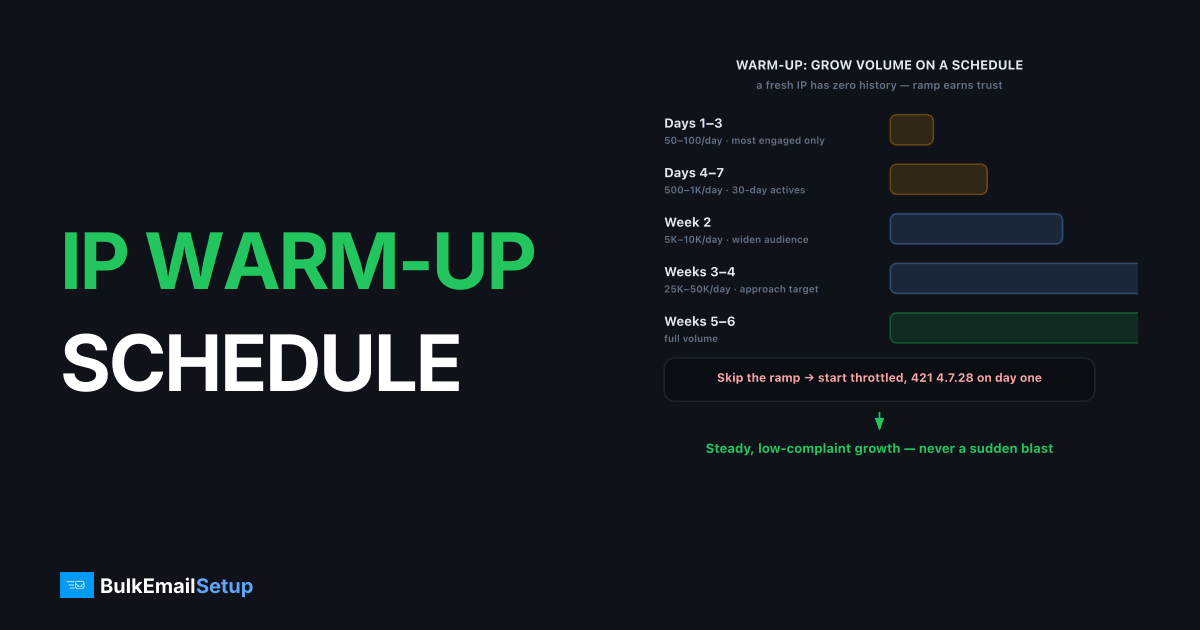
An IP warm-up schedule is a gradual increase in daily send volume on a new sending IP, ramping from roughly 50 to 100 emails on day one up to your full target over about 4 to 6 weeks. The point is simple: a fresh IP has zero sending history, and mailbox providers like Gmail and Yahoo throttle unknown senders by default. Warm-up earns their trust by showing steady, low-complaint volume that grows predictably instead of spiking overnight.
Why does a new IP need warming up at all?
A cold IP has no reputation, and reputation is what mailbox providers use to decide inbox versus spam versus rejection. According to Google Postmaster Tools, sender reputation is built over time from consistent volume and low complaint rates. A new IP that suddenly blasts 50,000 emails looks exactly like a compromised host or a spammer, so receivers defer or block it.
Warm-up flips that signal. By starting small and growing on a schedule, you give Gmail, Yahoo, and Microsoft a clean, legible history. Each day of low complaints and good engagement adds a little trust. Skip the ramp and you start life throttled, with errors like 421 4.7.28 (Gmail IP rate limit) on day one.
What does a week-by-week warm-up schedule look like?
A typical 4-6 week schedule roughly doubles volume every few days while watching engagement. The exact ceiling depends on your full target, but the shape below works for a sender ramping toward 100K/day. Send to your most engaged contacts first, then widen.
| Day range | Daily volume | Focus |
|---|---|---|
| Days 1-3 | 50-100 | Most engaged openers only |
| Days 4-7 | 500-1,000 | Recent 30-day actives |
| Week 2 | 2,000-5,000 | 90-day engaged segment |
| Week 3 | 10,000-20,000 | Broaden, watch complaints |
| Week 4 | 40,000-60,000 | Add older active contacts |
| Weeks 5-6 | 80,000-full | Reach target, hold steady |
The numbers matter less than the slope. Doubling every 2-3 days while keeping complaints under 0.1% is the real rule. If complaints spike, hold volume flat for a few days before climbing again.
Which metrics tell you to slow down?
Three signals say "pause the ramp": rising bounce rates, complaint rates approaching 0.3%, and a jump in 4xx deferrals. Gmail's recommended spam complaint ceiling is 0.3%, with under 0.1% considered healthy, per Google's bulk sender requirements. Cross those lines and your reputation is actively degrading.
In practice, watch your SMTP logs for clusters of 421 deferrals and 550 5.7.1 policy blocks. We have seen a 50K/day ramp drop to 12% inbox placement after one bad-list import spiked complaints. The fix was never "send more"; it was hold volume, clean the list, and resume the climb a few days later.
Domain reputation moves alongside IP reputation here. For how those two interact, see domain reputation vs IP reputation.
How do you split the daily volume across providers?
Split your daily warm-up volume in proportion to your list, then warm each major provider on its own track because they throttle independently. Gmail does not care that Yahoo trusts you. A clean ramp at one inbox earns nothing at another, so you watch each one separately.
A practical way to run it: bucket your engaged contacts by provider, then send each bucket its share of the day's cap. If 40% of your list is Gmail, roughly 40% of the daily number goes to Gmail addresses, drawn from your most engaged Gmail contacts first.
| Provider | Early-ramp signal to watch | Typical throttle error |
|---|---|---|
| Gmail | 421 4.7.28 rate limit | Deferral, slow down |
| Yahoo | Temporary deferral on spikes | 421 retry-later |
| Microsoft | SNDS reputation turning yellow/red | 421 RP-001 style block |
In ramps we have run, Gmail is usually the strictest in weeks 1-2 and Microsoft the slowest to grant trust overall, so we hold Microsoft volume a notch below the others until SNDS shows green. A concrete pattern we see most weeks: Gmail loosens its 421 4.7.28 deferrals around day 10 to 14 of a clean ramp, while a fresh IP's SNDS color often sits yellow into week 3 even when Gmail is already green. That gap is exactly why we under-send Outlook early instead of matching the Gmail number. Treat the table as a starting point, not a guarantee.
How do you monitor a warm-up in progress?
Monitor a warm-up with three dashboards open: Google Postmaster Tools for Gmail reputation and spam rate, Microsoft SNDS for Outlook IP data, and your own SMTP logs for deferrals. Postmaster reports IP and domain reputation on a Bad-to-High scale, which is the clearest single read on whether your ramp is working.
Check daily, not weekly. The signals that say "hold volume flat" appear fast: a spam rate ticking above 0.1% in Postmaster, an SNDS color shift, or a cluster of 421 deferrals in your logs. When any of those move the wrong way, freeze the daily number for two to three days, fix the cause (usually list quality), then resume the climb. Broader monitoring setup is in how to monitor email deliverability.
Does every sender need to warm up?
Only senders on a new dedicated IP need a full warm-up. Shared IP pools are already warm, which is one of their genuine advantages for low-volume senders. A dedicated IP makes sense roughly above 50K/month sent consistently, and that is exactly the volume where warm-up becomes mandatory.
If you are deciding between shared and dedicated, the volume threshold and trade-offs are covered in dedicated IP vs shared IP for email. Cold outreach is a special case: rotated IPs or mailbox-level sending each carry their own slow ramp, and you cannot shortcut either one.
What does a stalled warm-up look like, and how do you restart?
A stalled warm-up shows up as flat or falling inbox placement while your daily volume keeps climbing, usually after one bad day spiked complaints or bounces. The fix is not to push through. Drop back to the last volume tier that was clean, hold it for three to five days, then resume the slope from there.
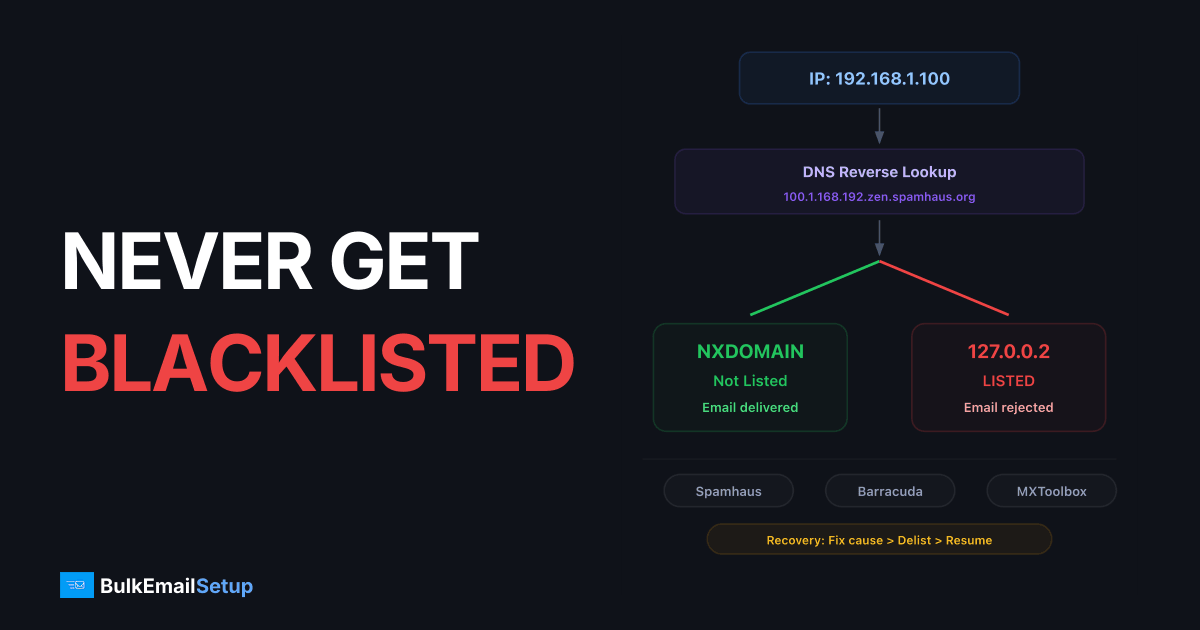
Think of it as stepping down one row in the schedule, not back to day one. If Week 3 at 15,000/day triggered a complaint spike, fall back to the Week 2 ceiling of 5,000, send only to your most engaged segment, and watch Postmaster recover before you climb again. A true restart from 50/day is only needed if you actually got blocklisted, which is the expensive outcome the gradual ramp exists to prevent. Most stalls cost you a few days, not a few weeks, as long as you react to the signal instead of overriding it.
How BulkEmailSetup helps
Warm-up is a six-week babysitting project, and most senders get the slope wrong. We provision clean dedicated IPs and run the entire warm-up for you, watching complaints and deferrals daily so the ramp stays safe. You get the control of a dedicated IP without the manual schedule. Plans and IP counts are on our pricing page.
Frequently asked questions
How long does IP warm-up take?
Most IPs warm up over 4-6 weeks. Lower-volume senders can finish in about 3 weeks; senders pushing 100K+/day often need 6-8 weeks. The pace depends on your full target volume, not a fixed calendar.
How many emails can I send on day one of warm-up?
Start around 50 to 100 emails per day to your most engaged recipients. Sending thousands on a cold IP triggers throttling and deferrals like 421 4.7.28 from Gmail almost immediately.
Can I speed up IP warm-up?
Only a little. Sending exclusively to highly engaged contacts who open and click lets you ramp faster because positive signals build reputation quickly. There is no safe way to skip the schedule entirely.
What happens if I send too much too fast?
Mailbox providers defer or block your mail with 4xx temporary errors, and repeated spikes can land you on a blocklist. You then restart warm-up from a worse position, so rushing usually costs more time.