
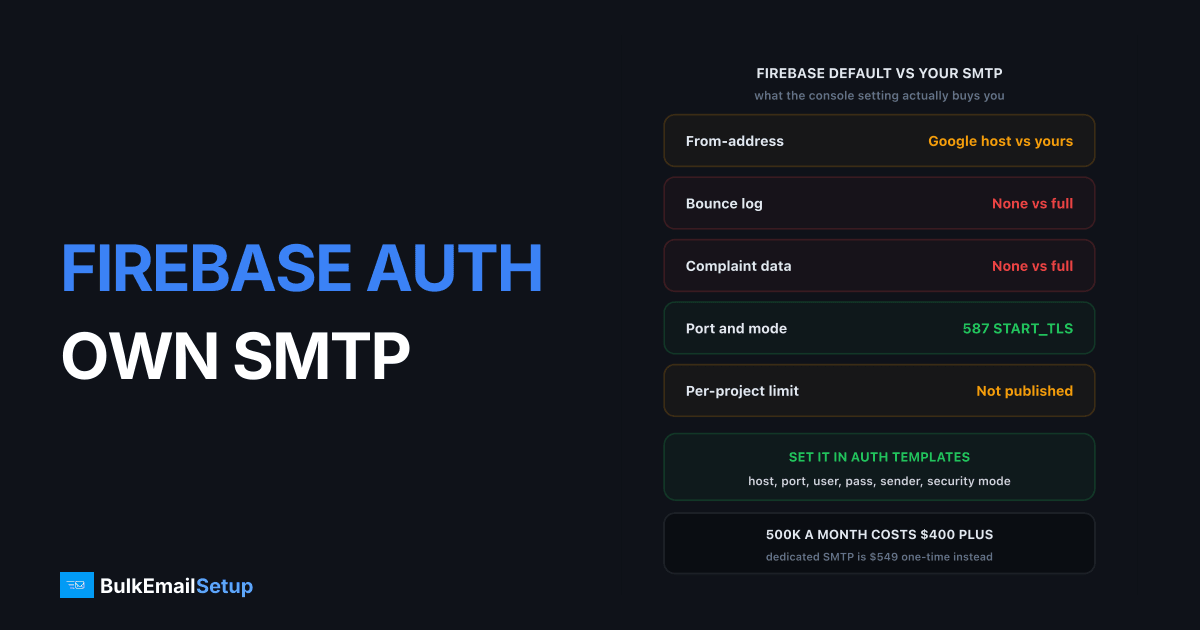
Firebase Authentication sends verification and password-reset mail from Google's own infrastructure by default, and you get a limited template, a from-address you do not fully control, and zero bounce visibility. You fix that in the Firebase console under Authentication, Templates, SMTP settings: host, port, username, password, sender address, and a security mode of SSL or START_TLS. That flips the underlying Identity Platform field sendEmail.method from DEFAULT to CUSTOM_SMTP. The other route, which is where most production apps end up, is generating the action links with the Admin SDK and sending the mail from your own code.
What the default actually does
Firebase's default is a hosted sender. Your project's verification, reset and email-change messages go out over Google-operated infrastructure, on a shared reputation, with a template editor that gives you a subject line and a short body and not much else.
That is fine for a prototype. It stops being fine the moment a paying user tells you the reset email never arrived, because you have no answer.
| Limitation | What it means in practice |
|---|---|
| From-address | Reads as a Google-hosted sender unless you verify a custom domain |
| Template control | Subject plus a small text body, no HTML layout, no logo |
| Bounce data | None. No log, no webhook, no suppression list |
| Complaint data | None. You cannot see a spam report |
| Reputation | Shared with every other Firebase project on that path |
| Per-project limits | Google applies its own rate limits and does not publish a firm number |
That last row matters and I am not going to invent a figure for it. Google does not publish a hard per-project quota for auth emails, and the throttling people hit in practice is opaque. Treat the default as "enough for signups, not something to plan capacity around".
The console route: custom SMTP in Authentication Templates
The fastest fix. Firebase console, Authentication, Templates tab, SMTP settings. You give it six things.
| Setting | What to put in it |
|---|---|
| SMTP server host | Your relay hostname, e.g. smtp.yourdomain.com |
| Port | 587 for START_TLS, 465 for SSL |
| Username | The relay account or API-key username |
| Password | The relay password or API key |
| Sender address | [email protected] |
| Security mode | START_TLS on 587, SSL on 465 |
Behind the console this writes to the Identity Platform project config. The Identity Platform Config reference documents the exact shape: notification.sendEmail.method takes DEFAULT or CUSTOM_SMTP, and the smtp block holds senderEmail, host, port, username, password and securityMode, where securityMode is SSL or START_TLS. Useful to know, because if you manage infrastructure as code you can set this over the API rather than clicking.
Test it before you trust it:
# confirm the relay accepts your credentials on 587 with STARTTLS
openssl s_client -starttls smtp -crlf -connect smtp.yourdomain.com:587
If that handshake fails from your laptop it will fail from Firebase too. Port 25 is not an option here, most clouds block it outbound.
One separate thing worth doing at the same time: verify a custom domain for the action links, covered in Firebase's custom domain doc. Otherwise the link in the email still points at a firebaseapp.com host, which looks wrong next to a branded from-address and gets flagged by some corporate filters.
The Admin SDK route: send the mail yourself
The alternative is to stop letting Firebase send anything. You ask the Admin SDK for the action link, and your own code puts it in your own email.
Three methods do the work: generatePasswordResetLink, generateEmailVerificationLink and generateSignInWithEmailLink. Each returns a URL carrying a one-time oobCode. You drop that URL into your template and send it through whatever transactional path you already run. Firebase still validates the code when the user clicks, so security is unchanged.
| Factor | Console SMTP setting | Admin SDK links, your own send |
|---|---|---|
| Setup time | Under an hour | A day or two of work |
| HTML templates | No, plain body only | Full control |
| Localisation | Per-language templates, limited | Anything you can code |
| Bounce and complaint log | Whatever your relay gives you | Full, in your own system |
| Retries on failure | None you can see | Your queue, your rules |
| Event tracking | None | Send, deliver, open, click |
| A/B or copy changes | Console edit | Deploy |
| Who to pick it | Small teams, early product | Anything with paying users |
My honest read: the console setting is the right first move, and it buys you maybe a year. Once you have support tickets about missing emails, or a design team that wants the reset email to match the app, or a compliance need to prove an email was sent at a timestamp, you move to the Admin SDK route. The switch is not painful, because your SMTP relay stays the same either way. Only the sender changes.
Which auth emails are time-critical
Not all of them carry the same urgency, and that changes how you route them.
| Email type | User is waiting | Tolerable delay |
|---|---|---|
| Email verification at signup | Yes, staring at the screen | Under 30 seconds |
| Password reset | Yes, locked out | Under 30 seconds |
| Sign-in link (passwordless) | Yes, cannot log in without it | Under 15 seconds |
| Email address change confirm | Somewhat | A minute or two |
| Email change revert notice | No | Minutes |
The first three are the ones that decide whether a signup completes. A verification email that takes four minutes loses a meaningful share of new users, because people tab away and do not come back. That is the whole argument for caring about this at all.
Send those three through a path with no batching and no queue depth. If your relay shares a queue with a nightly digest job, a reset can sit behind 40,000 marketing messages. Same reasoning as in SMTP for SaaS transactional email: the protocol is never the slow part, the queue in front of it is.
Keep auth mail off your marketing subdomain
Use a separate sending subdomain for auth. auth.yourapp.com or accounts.yourapp.com, with marketing on something else entirely.
The reason is blunt. Reputation at Gmail and Microsoft is scored per domain and per subdomain. If your Black Friday campaign draws a 0.4% complaint rate, that reputation hit lands on the subdomain that sent it. Keep password resets on a different subdomain and they never feel it. Same root domain, so DMARC alignment still works, different reputation bucket.
Set the Firebase sender address to that subdomain and publish the DNS there. Subdomain versus root domain for email sending covers the full argument, including why you should not send anything from the bare root.
Authentication records you need
Once the mail is yours rather than Google's, you own the authentication. Four records, all of them non-optional at any real volume.
; SPF on the sending subdomain
auth.yourapp.com.  TXT  "v=spf1 include:_spf.yourrelay.com -all"

; DKIM, 2048-bit key, selector of your choice
s1._domainkey.auth.yourapp.com.  TXT  "v=DKIM1; k=rsa; p=MIIBIjANBg..."

; DMARC, start at none and read reports for two weeks
_dmarc.auth.yourapp.com.  TXT  "v=DMARC1; p=none; rua=mailto:[email protected]"
PTR is the fourth and it lives with whoever owns the sending IP. The reverse DNS for the IP has to resolve to a hostname that forward-resolves back to the same IP, and it should match the HELO name the server announces. On a shared relay this is the provider's job. On a dedicated IP it is yours, and a missing PTR gets you rejected outright by some receivers.
Keep SPF under the 10-lookup limit. Every include: you add costs a lookup, and a Firebase project with a relay plus a helpdesk tool plus a CRM will hit the ceiling faster than you expect and start returning PermError.
What it costs at 10K, 100K and 500K a month
Auth email volume roughly tracks signups plus reset requests. A B2B SaaS with 5,000 monthly signups sends far fewer auth emails than a consumer app with 200,000. Here is what the sending path costs at three volumes.
| Line item | 10,000/mo | 100,000/mo | 500,000/mo |
|---|---|---|---|
| Firebase default | $0, no control, no logs | $0, plus throttling risk | Not viable |
| SendGrid | ~$19.95/mo | ~$89.95/mo | ~$450+/mo |
| Mailgun | ~$15/mo | ~$90/mo | ~$400+/mo |
| Amazon SES | ~$1 plus your own ops | ~$10 plus your own ops | ~$50 plus your own ops |
| Dedicated SMTP server | $549 one-time + hosting | $549 one-time + hosting | $549 one-time + hosting |
SES is the cheapest raw number by a wide margin and I would not talk anyone out of it if they have the engineering time. What the $10 line hides is the review process, the sending-limit increases you have to argue for, and the fact that you are still on shared IPs unless you pay extra for dedicated ones.
The dedicated line crosses over somewhere between 100,000 and 250,000 a month for most teams. At 500,000, twelve months of SendGrid is roughly $5,400 against a one-time $549 plus $10 to $20 a month of hosting. The full arithmetic is in what 100,000 emails a month costs.
Migration checklist
Work in this order. Each step is verifiable before you move on.
- Pick the sending subdomain.
auth.yourapp.com. Do not reuse the marketing one. - Publish SPF, DKIM and DMARC on that subdomain. DMARC at
p=nonefirst. - Confirm PTR on the sending IP if it is yours, or confirm the provider's is set.
- Test the relay with the
openssl s_clientcommand above from an outside network. - Enter the SMTP settings in Authentication, Templates, SMTP settings. Port 587, START_TLS.
- Verify the custom domain for action links so the click URL is not
firebaseapp.com. - Send one of each type to Gmail, Outlook and Yahoo test accounts. Check the raw headers for
dkim=passandspf=pass. - Watch the relay's bounce log for a week. This is the visibility you did not have before. Use it.
- Move DMARC to
p=quarantineonce two weeks of reports are clean. - Reassess at 100,000/month. That is roughly where the Admin SDK route and dedicated IPs both start paying for themselves.
Step 7 is the one people skip and regret. A dkim=pass in the header is the only proof the whole chain works. Everything else is hope.
If you are also sending welcome sequences and product onboarding through the same path, SMTP for SaaS onboarding emails covers how to keep those separate from the auth stream without running two relays.
How BulkEmailSetup helps
We build the SMTP infrastructure that sits behind the Firebase SMTP settings box: your own server, your own IPs, SPF, DKIM, DMARC and PTR configured and verified, MTA tuning, bounce handling, and a warm-up plan so your first week of password resets does not land in spam. Because the IPs are yours alone, no other Firebase project's sending affects whether your verification email arrives.
Basic is $549 one-time, covering 1 SMTP server, 3 dedicated IPs, 25,000 emails/day and unlimited contacts. Higher tiers scale to 15 IPs and 200,000 emails/day. See pricing, or read SMTP for SaaS transactional email for the wider picture on running auth and transactional mail on infrastructure you control.
Frequently asked questions
Can Firebase Authentication send email through my own SMTP server?
Yes. In the Firebase console under Authentication, Templates, open SMTP settings and switch from the default to a custom SMTP relay. You supply host, port, username, password, sender address and a security mode of either SSL or START_TLS. Under the hood this sets the Identity Platform config field sendEmail.method to CUSTOM_SMTP.
What is wrong with the default Firebase auth emails?
Three things. The mail leaves Google's shared infrastructure so the from-address and Return-Path are not fully yours, the template editing is limited to a subject line and a small body, and you get no bounce or complaint log at all. If a user says the reset email never arrived, you have nothing to check.
Should I use the console SMTP setting or send the emails from my own code?
Use the console setting if you want branding and deliverability fixed in an afternoon. Use the Admin SDK route, generatePasswordResetLink and generateEmailVerificationLink, if you need full HTML templates, per-user localisation, retries, or event logging. Most production SaaS apps end up on the Admin SDK route within a year.
Which port should I use for Firebase custom SMTP?
Port 587 with START_TLS is the normal choice and works with almost every relay. Port 465 with SSL is the alternative if your provider prefers implicit TLS. Port 25 is blocked outbound by most clouds and should not be used here.
Do I need SPF and DKIM if Firebase sends the mail?
Yes, and they matter more once you switch to custom SMTP, because the mail is now authenticated as your domain rather than Google's. Publish SPF for the relay, add a DKIM key with a 2048-bit selector, and start DMARC at p=none until the reports look clean. Gmail and Yahoo have required all three from bulk senders since February 2024.
Should auth email use the same domain as my marketing email?
Use the same root domain for alignment, but a separate subdomain for sending. Something like auth.yourapp.com for verification and resets, and news.yourapp.com for campaigns. A marketing send that draws complaints then cannot drag down the reputation that delivers password resets.
What does it cost to run Firebase auth email on your own SMTP?
At 10,000 emails a month a shared relay runs about $15 to $20. At 100,000 you are looking at $80 to $100 on most per-email plans. At 500,000 the per-email plans reach $400 or more a month, and a dedicated SMTP server at a one-time $549 plus roughly $10 to $20 a month of hosting becomes the cheaper line.


