
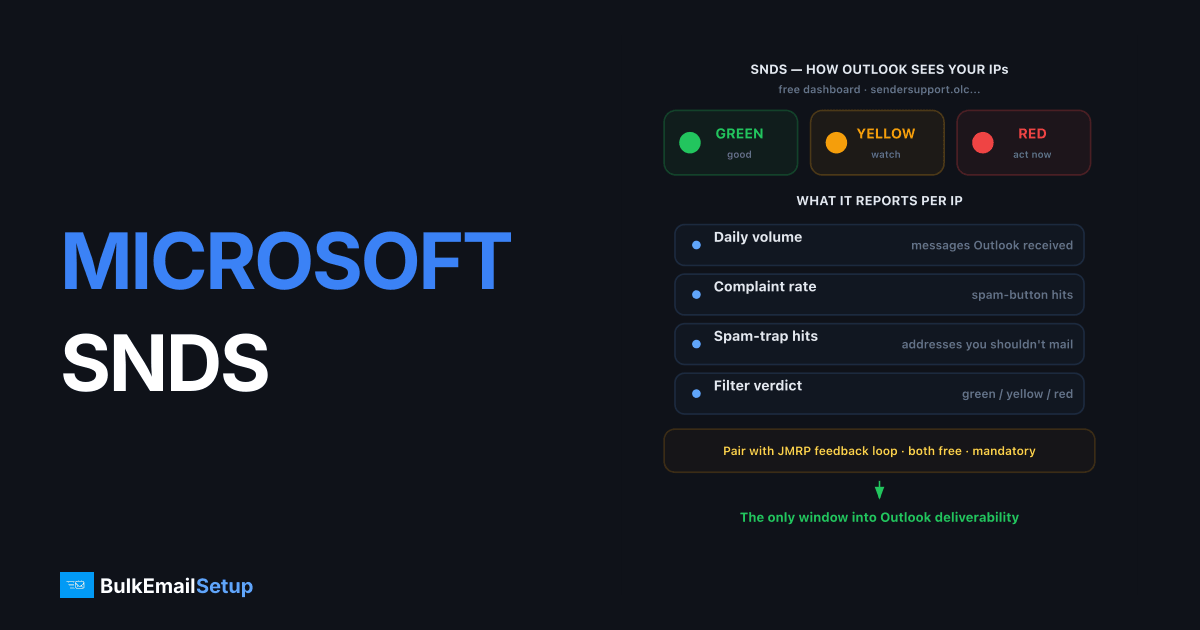
Microsoft SNDS (Smart Network Data Services) is a free dashboard at sendersupport.olc.protection.outlook.com/snds that shows exactly how Outlook.com sees each of your sending IPs: daily volume, complaint rates, spam-trap hits, and a green/yellow/red verdict on how much of your mail their filters junked. If you send any meaningful volume to Outlook, Hotmail, or Live addresses, registering your IPs in SNDS, plus its companion feedback loop JMRP, is mandatory monitoring, and it costs nothing.
Why SNDS matters
Microsoft is the most opaque of the big mailbox providers. Gmail gives you Postmaster Tools with domain-level reputation; Microsoft gives you SNDS, and unlike Postmaster, SNDS is per-IP, which makes it the best free tool for watching a warm-up or diagnosing a single bad IP in a pool.
It is also one of the only places a legitimate sender ever finds out they are hitting spam traps.
Registering your IPs
- Go to the SNDS portal and sign in with any Microsoft account.
- Click Request Access and enter an IP or CIDR block you control.
- SNDS emails a verification link to an address it considers authoritative for that space, typically
abuse@orpostmaster@of the rDNS domain, or the WHOIS contact for the netblock. Pick one you can actually receive. - Click the link; data appears under View Data within a day or two of qualifying traffic.
If none of the offered addresses reach you, fix that first, a bulk sender who cannot receive postmaster@ mail has a bigger problem than dashboards.
Reading the SNDS data page
Each row is one IP on one day, shown only when the IP sent enough mail (roughly 100+ messages) to Microsoft:
| Column | Meaning | Healthy looks like |
|---|---|---|
| Activity period | The day, with RCPT/DATA command counts | Volume matching your logs |
| Filter result | Green / Yellow / Red | Green every day |
| Complaint rate | % of recipients who hit "junk" | < 0.1% |
| Trap message period + count | Spam-trap hits | Zero, always |
| Sample HELO / MAIL FROM | What your server announced | Your real hostnames |
The color thresholds
| Color | Filtered as spam | What to do |
|---|---|---|
| Green | < 10% | Normal operation |
| Yellow | 10-90% | Investigate within 24h: content, list segment, volume jump |
| Red | > 90% | Stop the affected stream; treat as an incident |
A single yellow day during warm-up is common. Microsoft distrusts young IPs. A yellow streak, or any red on established volume, means a real reputation problem.
Spam traps: the column that should terrify you
SNDS reports the count and time window of trap hits (not the addresses, nobody reveals those). Any non-zero number means your list contains addresses that were never real or died long ago:
- Recent trap hits + old list = recycled traps. Cut everyone with no engagement in 6+ months.
- Trap hits on a brand-new list = the list was purchased or scraped. Stop using it entirely.
Trap hits feed directly into listings at Spamhaus CSS and Barracuda too, our Spamhaus delisting guide explains what happens when those fire.
JMRP: the other half of the setup
The Junk Mail Reporting Program is Microsoft's feedback loop. Enroll at the same sender support portal; once active, every time an Outlook user clicks "Report junk" on your mail, Microsoft forwards the complaint to an address you nominate.
Wire that mailbox into your suppression automation: complainer in, permanently suppressed within minutes. SNDS tells you the complaint rate; JMRP gives you the people, and removing them is how you keep the rate under 0.1%.
Using SNDS during IP warm-up
SNDS is the single best instrument for warming an IP against Microsoft, which throttles new IPs harder than anyone:
- Register the IP in SNDS before the first send.
- Expect blank days early, under ~100 messages/day to Microsoft, nothing shows.
- Watch for
421 RP-001orS3140style deferrals in your logs alongside SNDS colors; deferrals mean slow down even if the color is green. - Hold volume flat after any yellow day; only increase after 2-3 clean green days.
The full ramp timetable is in our IP warm-up schedule, and the per-provider ceilings are in how many emails per day per IP.
SNDS limits to know
- Outlook.com only. It covers the consumer stack (outlook.com, hotmail, live, msn), not Microsoft 365 corporate tenants, which use separate filtering.
- No reliable export API. Check it daily, or script the authenticated data URL into your monitoring.
- No domain reputation. Pair it with Google Postmaster Tools for the Gmail side of the picture.
How BulkEmailSetup helps
Every IP we provision is registered in SNDS and JMRP from day one, with complaint and trap alerts wired into our monitoring, so a yellow day gets investigated before it becomes a red week. If you want Microsoft deliverability watched for you around the clock, see our pricing.
Frequently asked questions
What is Microsoft SNDS?
Smart Network Data Services is Microsoft's free portal that shows per-IP sending data into Outlook/Hotmail: message volume, complaint rates, spam-trap hits, and how their filters classified your mail.
How do I register for SNDS?
Sign in with a Microsoft account at the SNDS portal, request access to your IPs or CIDR range, and verify ownership via an email sent to an authorized address for that IP space (abuse@, postmaster@, or the rDNS/WHOIS contact).
What do the SNDS colors mean?
Green means under 10% of your mail was filtered as spam, yellow means 10-90%, and red means over 90% was junked. Consistent green is the goal; a red day on real volume is an incident.
What is JMRP and do I need it as well as SNDS?
The Junk Mail Reporting Program is Microsoft's feedback loop: it forwards you a copy whenever an Outlook user marks your mail as junk. Yes, register for both. SNDS shows aggregate health, JMRP gives you the individual complainers to suppress.
Why does SNDS show no data for my IP?
SNDS only displays days when your IP sent roughly 100+ messages to Microsoft. Low-volume or warming IPs often show blank days, that is normal, not an error.


