
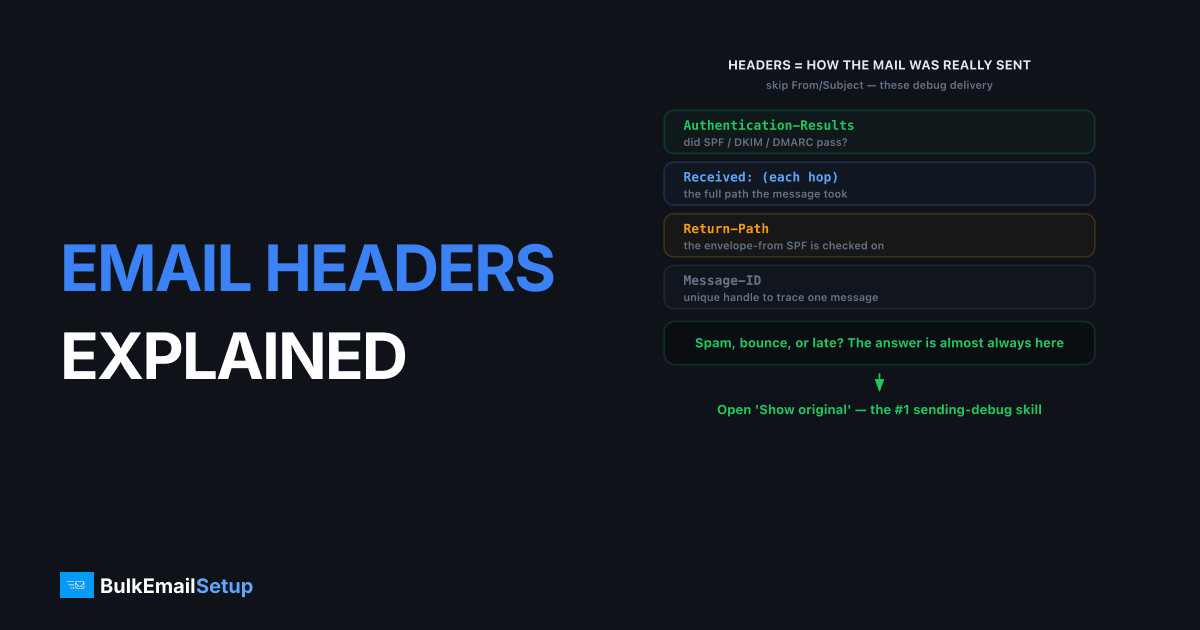
Email headers are the metadata at the top of every message that record exactly how it was sent, routed and authenticated. They include the obvious fields like From, To, Subject and Date, plus the diagnostic ones that actually matter: Return-Path, every Received hop the message took, the Message-ID, and Authentication-Results showing whether SPF, DKIM and DMARC passed. When mail lands in spam, bounces, or arrives late, the answer is almost always in the headers. Reading them is the single most useful debugging skill for anyone who sends email at volume.
How do you view the raw headers?
Every mail client hides the full headers by default, so the first step is finding them. The header view is sometimes called "show original," "view source," or "message properties," depending on the client.
| Client | How to view headers |
|---|---|
| Gmail | Open message, three-dot menu, Show original |
| Outlook desktop | Open message, File, Properties (Internet headers box) |
| Outlook.com | Open message, three-dot menu, View, View message source |
| Apple Mail | View menu, Message, All Headers |
| Yahoo Mail | More menu, View raw message |
"Show original" in Gmail is the most useful of these because it also prints a clean summary of the SPF, DKIM and DMARC results at the top before the raw text. Once you have the raw view open, you are looking at plain text fields, one per line, each starting with a field name and a colon. The diagnostic ones are worth memorizing.
What do the Received headers tell you?
Received headers are the message's travel log, and they stack newest on top, oldest on the bottom. Each Received line is added by a server as the message passes through it, so the chain records every hop from the original sender to your inbox. Read them from the bottom up to follow the message in chronological order.
A single Received line looks like this:
Received: from mail.sender.com (mail.sender.com [203.0.113.5])
    by mx.recipient.com with ESMTPS id abc123
    for <[email protected]>; Mon, 1 Sep 2026 10:42:11 +0000
Three things are worth checking. First, the originating host and IP at the very bottom tell you where the mail truly came from, which can expose spoofing. Second, the timestamps reveal delays: a large gap between two adjacent Received lines means the message sat in a queue, often greylisting or retry backoff. Third, ESMTPS versus ESMTP tells you whether that hop used TLS. A forged email often has inconsistent or implausible Received hops, which is one of the clearest spoofing tells.
Here is a full header block from a real-looking message, with the diagnostic fields in place. Read it from the bottom Received line upward:
Received: from mx.recipient.com (localhost [127.0.0.1])
    by mx.recipient.com with ESMTPS id 9F2A; Mon, 1 Sep 2026 10:42:14 +0000
Received: from mail.sender.com (mail.sender.com [203.0.113.5])
    by mx.recipient.com with ESMTPS id 7C1B
    for <[email protected]>; Mon, 1 Sep 2026 10:42:11 +0000
Authentication-Results: mx.recipient.com;
    spf=pass smtp.mailfrom=mail.sender.com;
    dkim=pass header.d=sender.com;
    dmarc=pass header.from=sender.com
Return-Path: <[email protected]>
Message-ID: <[email protected]>
Date: Mon, 1 Sep 2026 10:42:10 +0000
From: "Sender Brand" <[email protected]>
To: [email protected]
Subject: Your September update
The bottom Received line shows the true origin, 203.0.113.5, three seconds before delivery, with no queue gap. SPF, DKIM and DMARC all pass. The visible From is [email protected] while the Return-Path is [email protected], a normal split, not spoofing, because SPF here validated the Return-Path domain and aligned.
Which headers reveal authentication results?
The Authentication-Results header is where the receiving server records its SPF, DKIM and DMARC verdicts, and it is the first place to look when mail goes to spam. A healthy line reads:
Authentication-Results: mx.recipient.com;
    spf=pass smtp.mailfrom=sender.com;
    dkim=pass header.d=sender.com;
    dmarc=pass header.from=sender.com
Three pass results is the goal. A spf=fail means the sending IP is not authorized in your SPF record. A dkim=fail means the signature did not verify, often a body-hash mismatch from a forwarder modifying the message. A dmarc=fail means SPF and DKIM both failed to align with your From domain. This one header turns "my mail goes to spam" from a guess into a diagnosis.
This single line resolves most of the "my email goes to spam" tickets we open. The one that catches people out reads dkim=pass header.d=esp-mail.com next to a visible From: [email protected] and dmarc=fail. DKIM passed, so the sender swears authentication is fine, but the d= is the ESP's domain, not theirs, so nothing aligns. We point at that header.d= value and the fix, sign with a selector under their own domain, is immediate. Reading the header beats guessing every time. The full authentication trio is broken down in SPF vs DKIM vs DMARC, and a failing SPF result specifically points to the fix in SPF record explained.
Why do From, Return-Path and Message-ID matter?
These three identity headers do different jobs, and confusing them causes real bugs. The From header is the visible sender the reader sees. The Return-Path (set by the MAIL FROM command in the SMTP handshake, defined in RFC 5321) is the envelope address where bounces are sent. SPF validates the Return-Path domain, not the From, which is exactly why a marketing email can show [email protected] in From while bouncing to [email protected].
The Message-ID is a unique identifier stamped on each message, like <[email protected]>. It matters for two reasons: receivers use it to detect and drop duplicates, and it is the key you give support teams when tracing one specific message through logs. A missing or malformed Message-ID is a minor spam signal on its own, but it also makes a message nearly impossible to track. If you send through your own server, make sure it generates proper Message-IDs and a deliverable Return-Path, because a Return-Path pointing at a dead mailbox means you never see your bounces. Owning the sending IP and hostname makes these Received hops clean and traceable, which is part of the case for a dedicated versus shared IP.
A common reading mistake is blaming the From domain for an SPF failure. SPF aligns against the Return-Path (envelope sender), so a header showing spf=pass smtp.mailfrom=mail.brand.com next to a visible From: [email protected] is correct, not broken. The check that ties the visible From to authentication is DMARC alignment, not SPF. Another trap: a dkim=fail on a message that passed at your own server usually means a forwarder or mailing list rewrote the body or subject in transit, breaking the body hash. That is the forwarder's doing, not a flaw in your signing. When you see one auth result fail and the others pass, read all three lines together before concluding anything.
How BulkEmailSetup helps
When you read headers from a BulkEmailSetup dedicated SMTP server, you want three pass results in Authentication-Results, a Return-Path on a domain you control, and clean Received hops over TLS. We configure SPF, DKIM, DMARC and reverse DNS so those checks pass out of the box, and your own IP makes the Received chain easy to trace in logs. See setup details on our pricing page.
Frequently asked questions
What are email headers?
Email headers are the metadata fields at the top of every message that record how it was sent and routed. They include From, To, Subject, Date, Message-ID, Return-Path, every Received hop, and Authentication-Results showing SPF, DKIM and DMARC outcomes.
How do I view the full headers of an email?
In Gmail, open the message, click the three-dot menu and choose Show original. In Outlook, open the message and select File then Properties, or View source. Both reveal the raw headers including all Received lines and authentication results.
What is the difference between From and Return-Path?
From is the visible sender address shown to the reader. Return-Path is the envelope sender where bounces go, set by MAIL FROM during the SMTP handshake. SPF checks the Return-Path domain, not the From, which is why the two can legitimately differ.
How do I read the Received headers to trace an email?
Received headers stack newest on top, oldest on bottom. Read from the bottom up to follow the message from its origin to your inbox. Each line shows the sending host, receiving host and a timestamp, so gaps between timestamps reveal delays.


